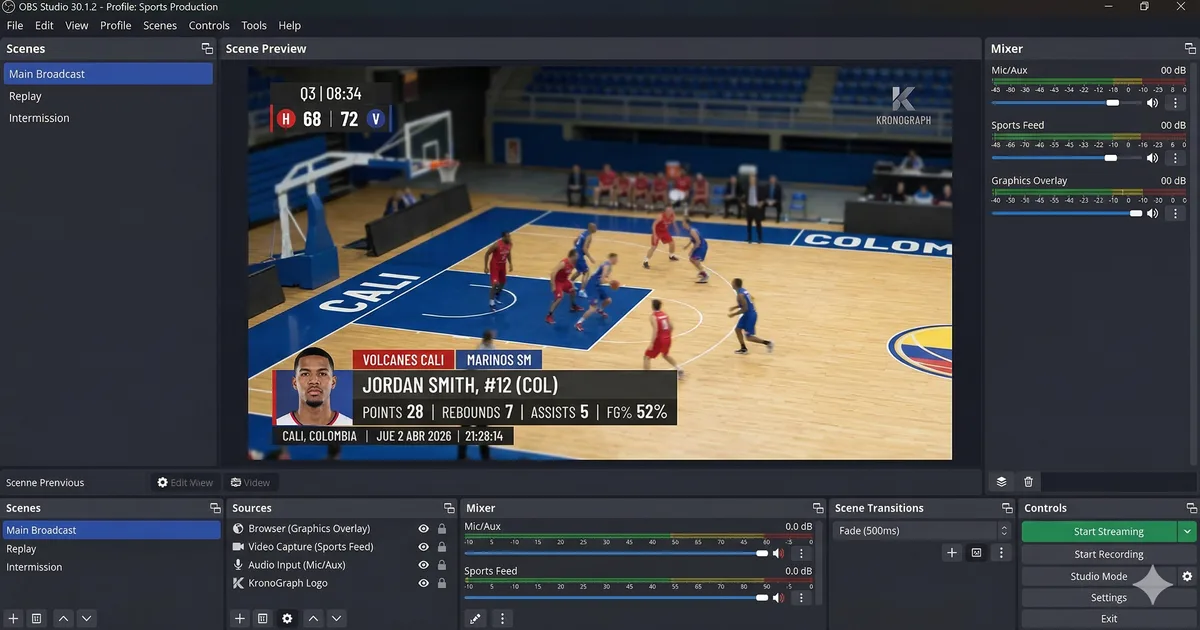
OBS + broadcast graphics: the exact setup for 1080p60 with no latency
OBS Studio is the world’s most widely used streaming tool and, properly configured, can produce a broadcast-quality signal. The key is how graphics are integrated.
Why Browser Source
KronoGraph graphics are web pages — rendered in a Chromium browser embedded within OBS. That means everything that works in a modern browser works as a graphic: CSS, animations, WebM video with transparency, web fonts.
The transparent background is what makes compositing possible. The graphic overlays on the video signal as an additional layer, exactly like a professional character generator.
OBS configuration for 1080p60
Before adding graphics, the base must be correct.
In Settings → Video: Base (Canvas) Resolution: 1920x1080 / Output Resolution: 1920x1080 / FPS: 60 (or 50 for PAL).
In Settings → Advanced: Color Format NV12 for streaming or I444 for high-quality recording. Color Space: sRGB.
In Settings → Encoder: NVENC H.264 if you have an NVIDIA GPU (lower CPU load). x264 if not: preset medium, profile high.
Adding the graphics Browser Source
In your production scene, add a new source: Browser Source.
- URL:
http://localhost:3005/publicgfx/[projectId]/[sessionId] - Width: 1920 / Height: 1080 / Custom FPS: 60
- Disable “Control audio via OBS” — graphics have no audio
Layer order in the scene
Top to bottom: (1) Browser Source — graphics, (2) Main video source, (3) Background/scene color. Graphics always above the video signal.
Why there’s no latency
OBS Browser Source renders in the same process as the rest of the composition. No window capture, no intermediate encoding. The result is zero latency between what the operator activates in Control and what appears in OBS output signal.
Multiple scenes for multi-sport production
In Multi-sport Games, each sport can have its own OBS scene with its own Browser Source. KronoGraph’s advantage is that each session has its own publicgfx URL — /publicgfx/project/athletics, /publicgfx/project/swimming — so adding a new sport is as simple as adding a new Browser Source.
Pre-air verification
- Confirm the Browser Source loads and shows a transparent background
- Activate a test graphic from Control and verify it appears in OBS
- Do IN and OUT to confirm animations
- Verify on the program monitor that colors are correct